

Showing posts with label QR Codes. Show all posts
Showing posts with label QR Codes. Show all posts
Thursday, August 15, 2013
Back to School Night QR Code Poster
Hey guys! Remember yesterday when I made that awesome QR Code with my contact information? Well I created a a poster to display on back to school night. I think it will be a perfect way for parents to get my information without having to even ask for it. I realize that not every parent has a smart phone, so of course I will have it available for those that don't. But I thought this would be a fun way to let parents know I'm hip with the technology! I downloaded a chalkboard background from Big Red Clifford. I then used PicMonkey (Have you tried it? It's amazing...and FREE!) to create the poster. Now I am just anxious for Back to School Night so I can meet some parents!


Wednesday, August 14, 2013
QR Codes for Teacher Contact Info
GUYS! I love finding new and innovative ways to reach out to students as well as their parents. While perusing Pinterest for Back to School Night, I came across an awesome idea! You can create your own personalized QR code with all of your contact information. Amazing, right?!?!?! So...I created my own and am planning on using it for when the parents and students come. I really think they will like it, and it shows them that I am new and open to what technology and options are available to me. Best part about this little code....it's FREE!
So...here are some simple steps in case you want to make one. You don't even need to be a teacher. It's for any type of contact information.
So to get started, go to the following link:
https://developers.google.com/chart/image/docs/chart_wizard?csw=1
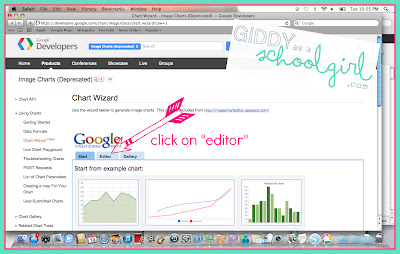
This is going to pull up the google chart wizard where you will actually create your code. See below image. Your first step is to click on the "Editor" tab.


Next, you change the information in the text box to show your contact information. If the box is empty, copy and paste the below paragraph into the box and then edit it to fit your information.
MECARD:N:Joe Morales;ADR:2920 Zoo Drive, San Diego, CA 92101;TEL:6191029501;EMAIL:first.last@email.com;
URL:http://website.com;;
So...here are some simple steps in case you want to make one. You don't even need to be a teacher. It's for any type of contact information.
So to get started, go to the following link:
https://developers.google.com/chart/image/docs/chart_wizard?csw=1

This is going to pull up the google chart wizard where you will actually create your code. See below image. Your first step is to click on the "Editor" tab.

Once in Editor, click on the drop down menu next to "Chart Type" and choose QrCode. See below image. Choosing QrCode will pull up what you need to fill out.

Next, you change the information in the text box to show your contact information. If the box is empty, copy and paste the below paragraph into the box and then edit it to fit your information.
MECARD:N:Joe Morales;ADR:2920 Zoo Drive, San Diego, CA 92101;TEL:6191029501;EMAIL:first.last@email.com;
URL:http://website.com;;
Voila! You are done! The QR code shows on the right hand side of your page. You can save it to your desktop to be used on fliers, business cards, emails, etc. If it doesn't let you save it, you can either use snipping tool on a PC under programs or on a mac you can hold down command+shift+4 until a little plus sign with tiny numbers pops up. Highlight the QR code and it will save it to your desktop.
Below the QR code is a link you can email out, or an html code that can be used in blogs, websites etc. I am so happy to have found this and can't wait to try other things with it in my classroom. I'm in the process of creating a little sign for back to school night using the code so I will post it when finished.
Night, ya'll!
Miss Jarvie
Subscribe to:
Posts (Atom)